Master Skies with Photoshop Cloud Brushes
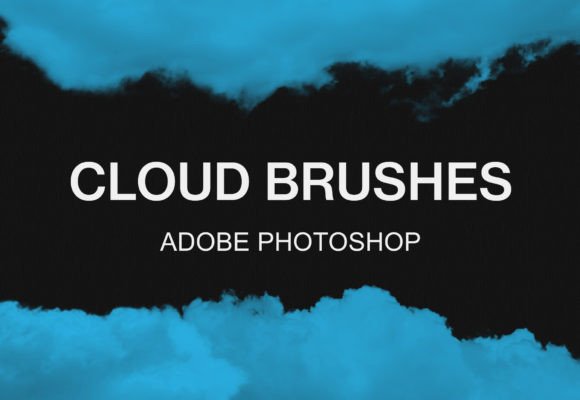
Digital art and photo manipulation often hinge on a single element: atmosphere. Whether you are compositing a fantasy landscape, retouching a corporate headshot, or designing a social media graphic, the sky sets the emotional tone. This is where the Photoshop Cloud Brushes Pack becomes an indispensable tool in your creative arsenal. Rather than spending hours manually painting cumulus formations or searching for stock images that never quite match your lighting, these brushes allow you to introduce realistic, dynamic cloud structures with a single click.
This specific bundle includes twenty distinct cloud variations, offering a range from wispy cirrus streaks to dense, stormy cumulonimbus masses. What makes this pack particularly accessible is its versatility. While it comes as a standard ABR file optimized for Adobe Photoshop, it is also fully compatible with GIMP. This cross-platform compatibility ensures that whether you are a professional using industry-standard software or a hobbyist utilizing open-source tools, you can achieve high-quality results without technical barriers.
Why Different Creators Choose Cloud Brushes
The value of a digital asset like the Photoshop Cloud Brushes Pack varies significantly depending on who is holding the stylus. For a seasoned concept artist, time is money. Manually rendering clouds is a tedious process that requires a deep understanding of light, volume, and atmospheric perspective. By using pre-made brushes, professionals can block in sky elements rapidly, focusing their energy on the focal points of the composition. The priority here is speed and workflow efficiency.
Conversely, for beginners and students, the primary benefit is educational and confidence-building. Learning to paint realistic clouds from scratch has a steep learning curve. These brushes serve as a scaffold, allowing new artists to see how cloud shapes interact with backgrounds. They can experiment with opacity, flow, and blending modes to understand how digital clouds behave, providing a safe space to learn without the frustration of starting from a blank canvas.
Marketers and small business owners often lack extensive graphic design training but need polished visuals for ads, banners, and website headers. For this audience, ease of use is paramount. The ability to double-click a file and instantly have twenty new tools available means they can create professional-looking imagery without hiring a designer for every minor update. The focus here is on reliability and immediate visual impact.
Practical Applications Across Industries
Understanding how to integrate these brushes into your specific workflow can transform your output. Here is how different users might leverage this twenty-brush set:
- Photographers and Retouchers: Use the softer, wispier brushes to replace blown-out skies in landscape photography. By lowering the opacity and matching the color temperature, you can salvage images that would otherwise be discarded.
- Fantasy Illustrators: Combine the denser cloud brushes with dramatic lighting effects to create epic battle scenes or mystical realms. Layering multiple brush stamps with different rotations adds depth and realism to imaginary worlds.
- Web Designers: Add subtle cloud textures to hero sections or background layers to break up flat colors. This adds visual interest and guides the user’s eye without distracting from the main content or call-to-action buttons.
- Educators: Use the brushes in tutorials to demonstrate layer masking and blending. Because the brushes are distinct and easy to manipulate, they are excellent subjects for teaching digital painting fundamentals.
Installation Guide for Photoshop Users
One of the strongest features of this bundle is its simplicity. Adobe has streamlined the installation process for ABR files, making it nearly effortless to expand your library. If you are working within the Adobe ecosystem, follow these steps to get started immediately:
- Unzip the Download: Locate the compressed file you downloaded from the shop. Right-click and select "Extract All" or use your preferred unzipping software to access the contents.
- Install the Brushes: Navigate to the extracted folder and find the ABR file. Simply double-click this file. Your operating system should recognize it as a Photoshop brush file.
- Verify Installation: Photoshop will launch automatically if it isn’t already open. The brushes will be loaded into your current brush preset panel. You may need to scroll to the bottom of your brush list to find the new set.
- Start Creating: Select the Brush Tool (B), choose your new cloud brush, and begin painting on a new layer. Experiment with size dynamics and opacity to suit your project.
This method ensures that your brushes are organized within Photoshop’s native system, allowing you to save them as part of your default workspace for future projects.
Installation Guide for GIMP Users
For those utilizing GIMP, the powerful open-source alternative to Photoshop, the process requires a few manual steps but remains straightforward. GIMP supports ABR files, meaning you do not need to convert formats or lose quality. Follow this path to integrate the 20 cloud brushes pack for Photoshop or GIMP into your workflow:
- Locate the GIMP Directory: Open your file explorer and navigate to your local disk. Typically, GIMP is installed under the "Program Files" folder on Windows or the Applications folder on macOS.
- Navigate to the Brushes Folder: Follow this specific directory path: GIMP 2 > share > gimp > 2.0 > brushes. This is the repository where GIMP stores all available brush tips.
- Prepare the File: Unzip the downloaded archive to reveal the ABR file.
- Copy and Paste: Copy the ABR file and paste it directly into the brushes folder identified in step two. You may need administrator permissions to modify files in this directory.
- Refresh GIMP: Restart GIMP if it is currently open. Upon reopening, go to the Brushes dialog, and you should see your new cloud brushes available for use.
Once installed, the behavior of the brushes in GIMP mirrors that of Photoshop. You can adjust spacing, hardness, and opacity to achieve the desired ethereal or stormy effect.
Evaluating Quality and Flexibility
When considering any digital asset, it is crucial to assess its long-term usefulness. A common concern with free or low-cost brush packs is repetitiveness. However, this pack offers twenty unique variations. This diversity allows for natural-looking skies, as real clouds are rarely uniform. By rotating and scaling different brushes from the set, you avoid the "stamped" look that plagues lower-quality assets.
Furthermore, the flexibility of these brushes extends beyond traditional sky replacement. They can be used to create smoke effects, fog, dust, or even abstract textures for print design. For entrepreneurs and marketers, this multi-functionality increases the return on investment. You are not just buying cloud tools; you are acquiring a versatile texture generator.
For educators and publishers, the clarity of the brush edges matters. These brushes are designed with soft transitions that blend seamlessly into existing backgrounds, reducing the need for extensive post-processing or masking. This saves time and ensures a polished final product, regardless of the user's skill level.
Making the Right Choice for Your Workflow
Deciding whether the Photoshop Cloud Brushes Pack is right for you depends on your current needs. If you frequently work with landscapes, architectural visualizations, or composite imagery, this tool is likely to become a daily staple. If you are a beginner, it offers a low-risk way to enhance your portfolios quickly. If you are a business owner, it provides a cost-effective solution for in-house marketing materials.
Remember that digital tools are only as good as the creativity applied to them. These brushes provide the foundation, but your adjustment of color, light, and composition brings the scene to life. Take the time to experiment with blending modes such as "Screen" or "Overlay" to integrate the clouds naturally with your underlying images.
To explore more tools that can streamline your creative process and enhance your digital toolkit, visit our shop for additional brush bundles. Whether you are looking for texture packs, foliage brushes, or lighting effects, expanding your library is the first step toward mastering your craft.