Mastering Precision: A Guide to Procreate Geometry Shapes Stamp Brushes
In the rapidly evolving world of digital illustration, speed and precision are often at odds. Artists frequently find themselves toggling between freehand sketching and the rigid tools required for technical drawings, architectural sketches, or graphic design elements. This is where specialized tools like Procreate Geometry Shapes Stamp Brushes become indispensable. By integrating a dedicated set of geometric stamps into your workflow, you can bridge the gap between organic creativity and structural accuracy without leaving the canvas.
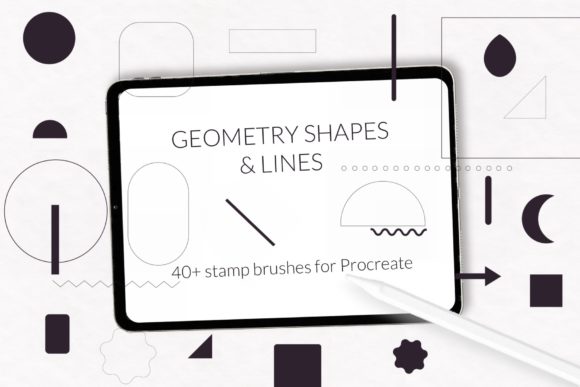
These brushes are not merely shortcuts; they are foundational tools designed to streamline the creation of basic forms. Whether you are designing UI elements, drafting floor plans, creating patterned backgrounds, or simply need a perfect circle for a character’s eye, having immediate access to standardized shapes transforms how you approach complex compositions. The inclusion of forty-six distinct geometry forms and lines ensures that virtually any basic structural need is met with a single tap.
The Power of Non-Pressure Sensitive Stamps
One of the most defining characteristics of this specific brush set is its lack of pressure sensitivity. For many digital artists, pressure sensitivity is a prized feature, allowing for dynamic line weight and expressive strokes. However, when it comes to geometry, consistency is king. A circle should remain a perfect circle regardless of how hard you press the Apple Pencil against the iPad screen. Similarly, a square or a rectangle needs to maintain its proportional integrity.
By removing pressure sensitivity, these stamp brushes guarantee uniformity. Every time you stamp a shape, it appears with the exact same outline and fill properties defined in the brush settings. This predictability is crucial for professional workflows where visual consistency matters. It eliminates the frustration of accidentally tapering a line or distorting a shape due to varying hand pressure. Instead, you get clean, crisp, and identical results every single time, allowing you to focus on placement and composition rather than correcting imperfect vectors.
Comprehensive Shape Library
The versatility of this toolset lies in its breadth. The collection includes forty-six basic geometry forms and lines, covering the essential building blocks of design. You will find standard primitives such as:
- Circles and Ovals: Perfect for creating bubbles, planets, eyes, or soft organic containers.
- Squares and Rectangles: Essential for framing, UI design, architectural structures, and text boxes.
- Triangles: Useful for directional indicators, pyramids, or abstract geometric art.
- Lines: Both straight and varied line types help in creating grids, borders, and connection points.
Each shape is available with both outline and fill options. This duality allows for immediate stylistic variation. Need a solid block of color for a background element? Use the filled version. Need a wireframe look for a technical diagram? Switch to the outlined version. This flexibility means you do not need to switch between different tools or layers to achieve different visual effects, keeping your creative momentum intact.
Integrating Geometric Stamps into Modern Workflows
The application of Procreate Geometry Shapes Stamp Brushes extends far beyond simple doodling. In modern digital workflows, these brushes serve critical roles across various industries and creative disciplines.
For graphic designers, these stamps are invaluable for creating logos, icons, and layout structures. The ability to quickly drop in a perfect rectangle or circle allows for rapid prototyping of app interfaces or web layouts directly within Procreate. Designers can experiment with spacing and alignment without the overhead of importing vector files from other software.
Architects and interior designers who use iPads for client presentations benefit immensely from the line and shape stamps. Drafting quick floor plans or sketching furniture arrangements becomes significantly faster when you can stamp a rectangular table or a circular rug instead of drawing them freehand. The precision offered by these non-pressure sensitive brushes ensures that the sketches look professional and readable.
Even educators and content creators find these tools useful. Creating diagrams for tutorials, mathematical illustrations, or scientific explanations requires clear, unambiguous shapes. Using stamp brushes ensures that every diagram is legible and aesthetically pleasing, enhancing the learning experience for viewers.
Compatibility and Technical Requirements
Before diving into installation, it is vital to understand the technical constraints of this brush set. These brushes are designed exclusively for iPad Procreate. They are not compatible with Android tablets, desktop versions of Photoshop, or other drawing applications. Furthermore, the format of the file you receive depends on your software version.
The primary delivery method is a single .brushset file containing all forty-six brushes. This format is efficient and keeps your library organized. However, it requires Procreate version 5.0 or later. If you are using an older iPad that cannot support the latest Procreate updates, or if you are intentionally staying on Procreate version 4.0 or earlier, the .brushset file will not work.
For users on older versions, there is a solution. You can request individual .brush files. This alternative format allows for manual installation of each brush, ensuring that even those with legacy hardware or software can access these powerful tools. If you find yourself in this situation, reaching out to the creator via email is the recommended step to prepare these individual files for your needs.
How to Install Procreate Brushes
Installing these geometric stamps is a straightforward process, but the method varies slightly depending on whether you are using the modern .brushset format or the legacy .brush files. Below are the detailed steps for both scenarios.
Method 1: Installing the .brushset File (Recommended)
If you have Procreate 5.0 or later, this is the fastest and most efficient method.
- Download the .brushset file to your iPad. It will typically save to your Files app or Downloads folder.
- Open the Files app and locate the downloaded .brushset file.
- Tap on the file. Procreate should automatically launch and import the entire brush set into your library.
- Open Procreate and check your brush library. You should see a new collection named after the brush set, containing all forty-six geometry shapes.
Method 2: Installing Individual .brush Files (For Procreate 4.0 or Earlier)
If you are using an older version of Procreate, you will need to install each brush individually. This process is more time-consuming but equally effective.
- Download the folder containing the individual .brush files to your iPad.
- Open the folder and select the first .brush file you wish to install.
- Tap and hold the file with your finger or Apple Pencil to bring up the context menu.
- Choose Share from the menu options.
- Look for the option Open in Procreate. If it is not immediately visible, scroll through the app list and click on More.
- Find and select Procreate from the extended list.
- Procreate will open, and the brush will be added to your currently selected brush category.
- Repeat this process for each of the forty-six brushes.
Alternatively, you can import brushes directly within the Procreate interface:
- Open Procreate and navigate to the Brush Library.
- Click on the plus sign (+) to create a new collection, or select an existing one.
- Tap on Import.
- Navigate to the folder where you saved the downloaded .brush files.
- Select the desired brush file. It will be added to your collection.
- Repeat for all remaining brushes.
Once installed, these Procreate Geometry Shapes Stamp Brushes are ready to use. Simply select the shape you need, adjust the size and color, and tap on your canvas. The result is instant, precise geometry that enhances the professionalism and efficiency of your digital artwork. By mastering these tools, you unlock a new level of productivity, allowing you to focus on the creative aspects of your project while letting the software handle the mathematical perfection.